Oct 12, 2026Buying Guides
Choosing a Work Display: Resolution, Refresh Rate and the Ports Behind Them
Resolution and refresh rate get all the attention, but the port behind the screen decides what your display can do. How to match display, hub and cable by the numbers.
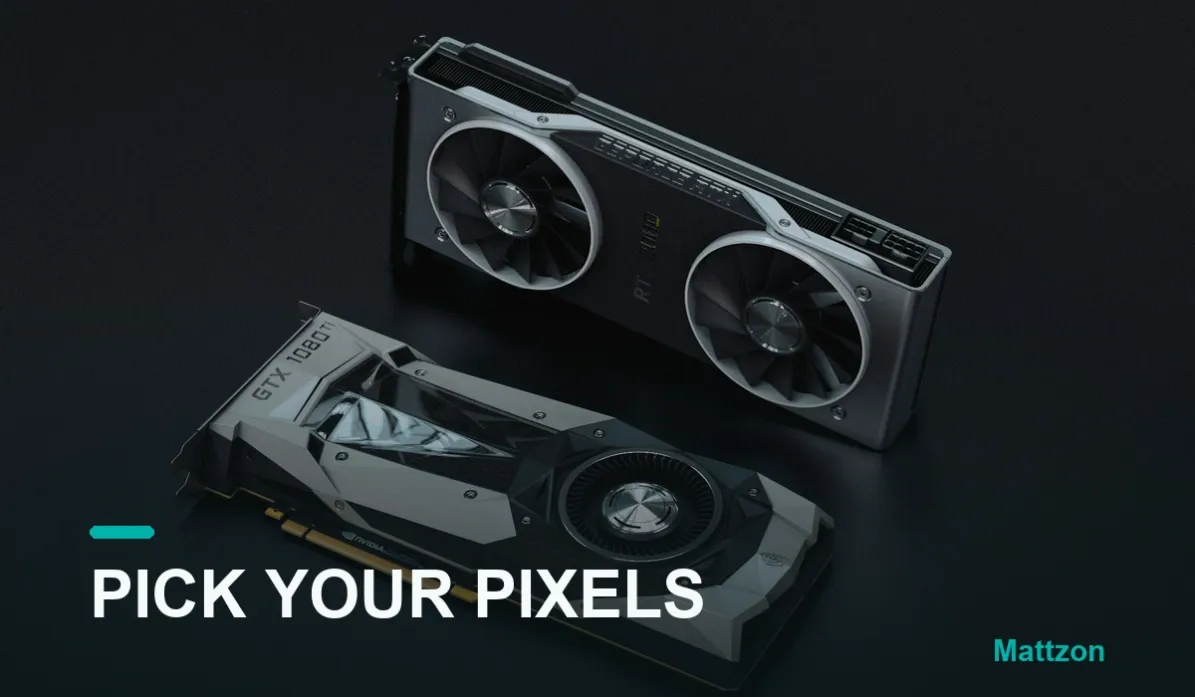
Display shopping is fun again. Panels are sharp, refresh rates climb every season, and the prices keep sliding. But a workplace display is only half a purchase, because every pixel and every hertz has to travel through a hub, a dock and a cable to reach it, and that chain is where good screens get quietly underfed. Choosing well means matching three numbers, not one: the resolution, the refresh rate, and the bandwidth of everything behind them.
Step One: Pick the Resolution the Work Needs
For office work, the meaningful measure is pixels per inch, the sharpness of text at your sitting distance. A 27-inch 4K panel (about 163 PPI) renders documents and code crisply; a 1440p panel of the same size sits at a comfortable middle with lighter hardware demands; 1080p remains serviceable for basic tasks but shows its edges on 27-inch and larger screens. Creative work on color-accurate 5K and 6K panels raises both the quality and the bandwidth bill. Choose the resolution for the work, and note it, because it sets the price of admission for everything behind the screen.
Step Two: Take Refresh Rate Seriously at Work
High refresh rates are marketed to gamers, but scrolling, window dragging and cursor motion all benefit from 120Hz and above, and anyone who has moved from 60Hz to 120Hz on a work display rarely goes back. The catch is bandwidth: a 4K panel at 60Hz fits comfortably through DisplayPort 1.4 or HDMI 2.0; the same panel at 144Hz needs substantially more, and 8K 60Hz demands the 80-gigabit class of DisplayPort 2.1, which as Tech-Insider noted in September, is already shipping in monitors while competing standards wait for next year.
Step Three: Match the Chain Behind the Screen
Now the part most buyers skip. The display's capability only arrives if the whole chain supports it: the host port (Thunderbolt, USB4, native DisplayPort Alt Mode), the hub or dock (each output rated for the resolution and refresh you chose), and the cable (certified for the bandwidth tier, not just shaped correctly). A 4K 144Hz screen behind a 4K 60Hz dock silently runs at 60. A certified cable downgraded to an airport kiosk special drops the link or flickers. The troubleshooting forums are full of mismatched chains that everyone assumed were fine.
The fix is a five-minute spec match: write the display's resolution and refresh, then verify that the dock's output, the cable's certification and the host port each meet or exceed that number. Any single link below the target caps the entire chain.
Where Our Line Fits
This matching exercise is exactly what our catalog is organized around. 8K-certified HDMI cables and DisplayPort 2.1 cables cover the top bandwidth tiers; hubs and docks like the MZTC9791, which drives three displays including an 8K 60Hz DisplayPort output through one Thunderbolt 4 connection, exist precisely to feed high-specification panels without compromise. Every product states its per-port and per-output capabilities, and every unit is tested before shipment, because a display chain is only as honest as its weakest link.
Pick the pixels your work deserves, then buy the chain that can carry them. For help matching a display setup to the right cable or hub, message Kitty's team on WhatsApp at +86 186 8146 2886.